Use S3 with Cyberduck
Cyberduck is a free and open source software to connect to FTP, SFTP, WebDAV, Amazon S3, OpenStack Swift, Backblaze B2, Microsoft Azure & OneDrive with just one click. It can also be used to upload and download files from servinga S3 Object Storage.
Please consider donating to Cyberduck, if you are using it commercially for your work or if you want to support the project and its ongoing development.
This tutorial will show you how to use Cyberduck to connect to your servinga S3 Object Storage and is assuming that you've already installed Cyberduck on your computer. While the screenshots are taken on a macOS system, the steps should be the same or at least similar on other operating systems Cyberduck runs on.
Configure Connection Profile
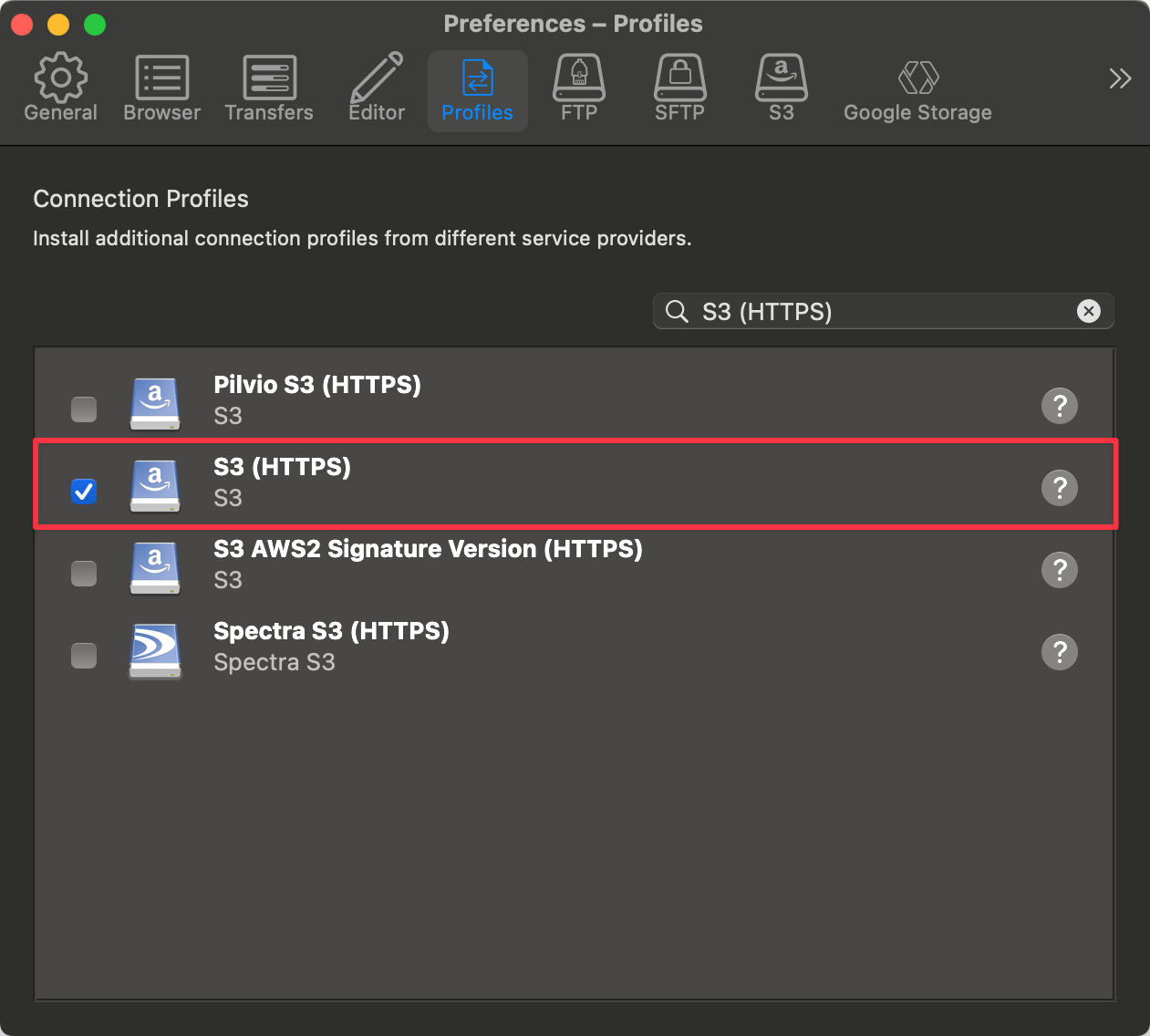
In order to allow the connection to an arbitrary S3 Object Storage, you need to make sure that the generic S3 (HTTPS) profile is enabled.
Go to Settings and select the Profiles tab. Then, you can search for S3 (HTTPS) and make sure the profile is enabled.
Create Connection
Afterward, you can create a new connection to your servinga S3 Object Storage. You'll need your storage user's access key and secret key to proceed.
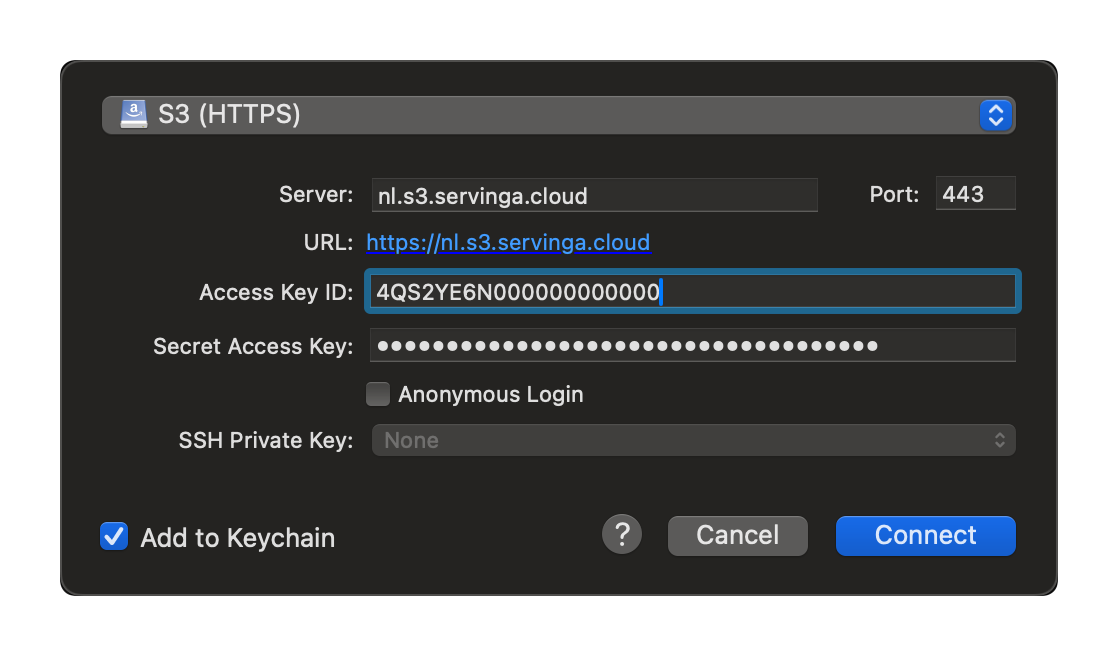
When filling out the connection form, make sure to select the S3 (HTTPS) profile and to use nl.s3.servinga.cloud as the Server.
Do not append your bucket's name to the URL or prepend it as subdomain, because Cyberduck will do that automatically and fail to connect if you do. After connecting you'll see a list of all buckets your storage user is allowed to access.